
The SVG viewBox describes the coordinate region used by the drawing. It is different from simply requesting a displayed width and height. If the artwork looks unexpectedly small, shifted or cropped during conversion, inspect the relationship between the viewBox and the actual shape coordinates before changing animation settings.
Read the four viewBox numbers
A viewBox contains an origin and a width and height: min-x, min-y, width, height. The origin does not have to be zero. A drawing designed around negative coordinates can be perfectly valid if its viewBox includes them. Problems begin when the exported coordinate region no longer matches the artwork.
For example, viewBox="0 0 100 100" includes a circle centered at 50,50. Replacing it with viewBox="0 0 512 512" without changing that circle leaves the artwork occupying a much smaller fraction of the available region. You have changed the coordinate window, not enlarged the circle.
The three panels keep the circle's coordinates and radius unchanged. In panel 2, moving the viewBox origin right makes the circle appear farther left. In panel 3, a wider coordinate window fits into the same square viewport: the circle becomes smaller, and preserving the aspect ratio leaves space above and below. This explains SVG display behavior; the converter's composition fitting still needs its own visual check.
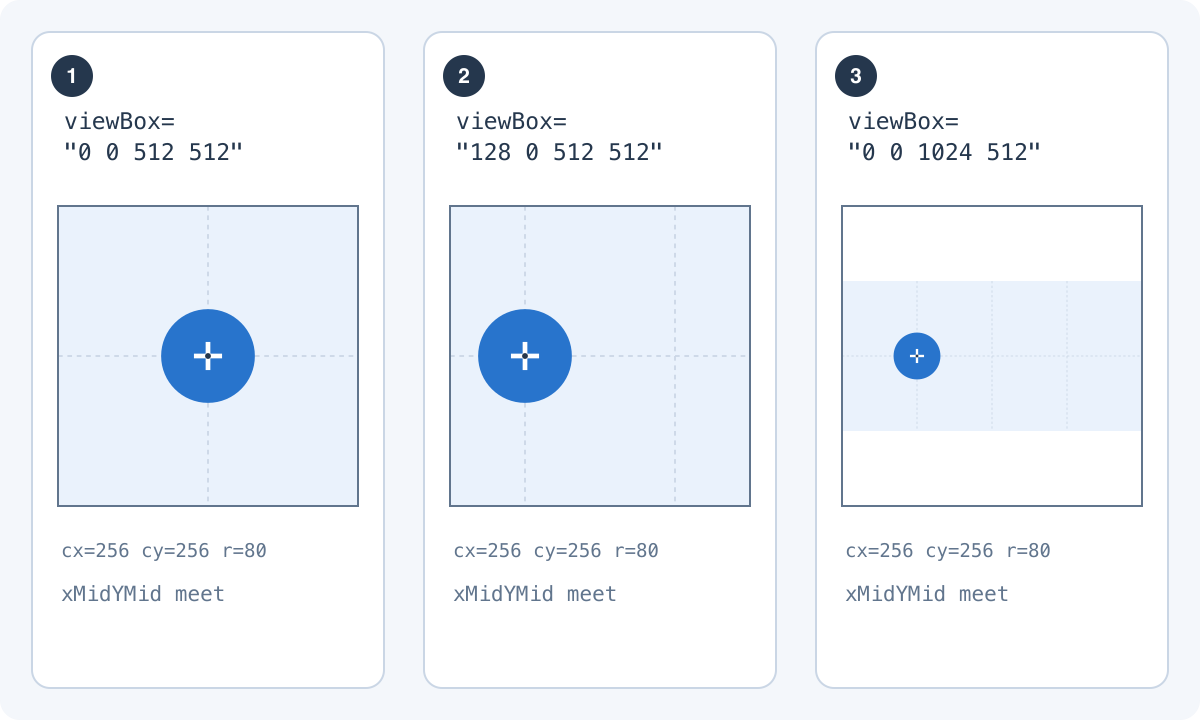
cx=256, cy=256, r=80. The viewBox values are (1) 0 0 512 512, (2) 128 0 512 512, and (3) 0 0 1024 512, with xMidYMid meet. Download the SVG diagram.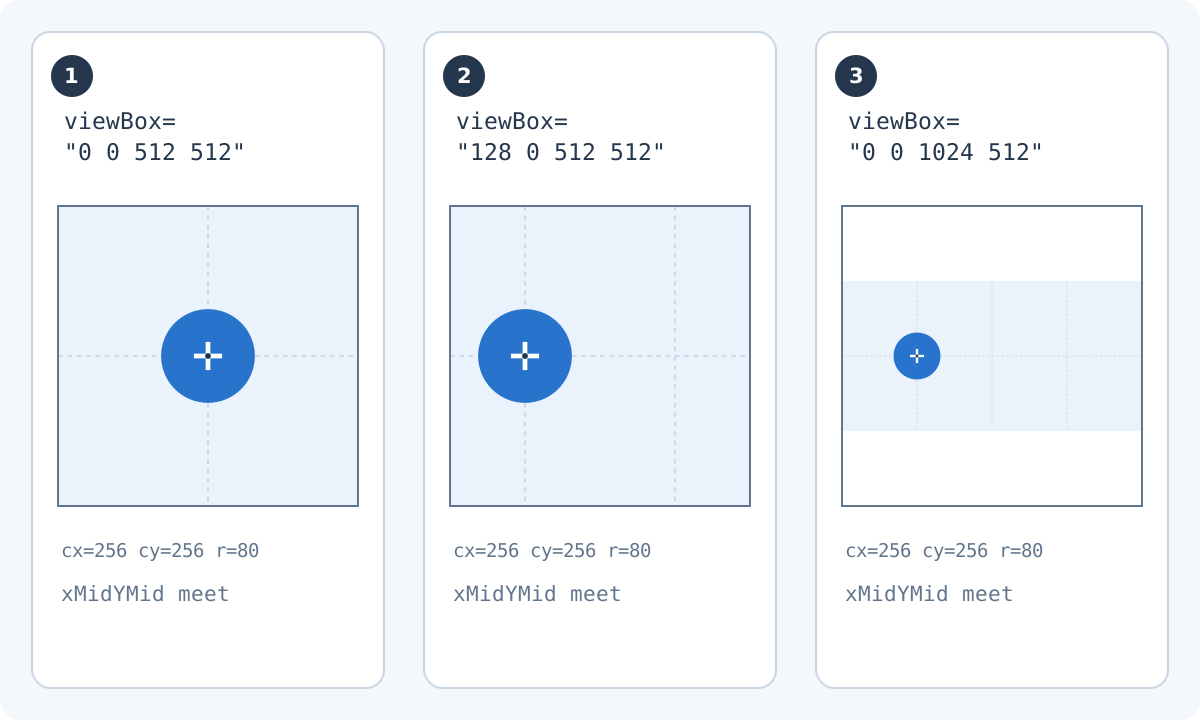
Use a small example to separate the concepts
This example places a circle centrally within a square coordinate system. The requested display size is larger than the internal coordinates, which is normal. The example illustrates SVG geometry; it is not a claim about a particular converted output.
When examining a real file, find the root SVG element and compare the same attributes. Do not rewrite every coordinate until you know whether the problem is the viewBox, a transform or an unexpectedly large invisible object.
<svg xmlns="http://www.w3.org/2000/svg" width="512" height="512" viewBox="0 0 100 100">
  <circle cx="50" cy="50" r="30" fill="#3688ff" />
</svg>
Keep proportions deliberate
A rectangular composition mapped into a square destination needs a fitting decision. Preserving its proportions can leave empty space on two sides. Stretching it independently in each direction changes the artwork. SVG includes preserveAspectRatio behavior, but a converter may apply its own composition fitting. Inspect the output rather than assuming browser layout and export placement are identical.
For a wide wordmark, empty space above and below can be preferable to distorted letters. If that leaves the wordmark too small, design a compact version for Telegram instead of forcing the original proportions into a square.
Check transforms and unexpected bounds
An object can have simple local coordinates while a parent group moves, rotates or scales it. Read the parent transforms when an element appears offset despite sensible path numbers. Also inspect stray points and hidden construction geometry that may have influenced the exported artboard.
A single distant point can make an automatically fitted canvas much larger than the visible logo. Remove the accidental geometry in the source editor and export again. This is usually easier to maintain than compensating for it with repeated manual scaling in the converter.
Judge placement across the whole animation
Once the baseline is centered, preview the motion before committing to the final artwork scale. Rotating corners and expanding strokes can approach the edge even if the resting design has generous space. Check the largest pose and the most extreme position.
Record the accepted canvas and scale alongside the source file. That makes a pack consistent: a second icon should not appear half as large simply because its original SVG used a different coordinate range. Compare the visual weight of the final previews, not only identical width and height numbers.
Test one revised SVG at a time in the converter after Telegram login. Selecting a source sends a diagnostic copy to the service, including before login; conversion is computed in the browser. Compare the still placement first, then the full motion.