
When part of an SVG disappears after conversion, first identify the earliest stage where it is missing. A source export problem needs a different repair from an unsupported feature or an animated layer moving out of view. Use a simple baseline and change the affected element before touching the rest of the artwork.
Compare three versions of the same design
Keep the source-editor view, the exported SVG opened independently and the converter preview available for comparison. Note the exact missing feature: “the letter A loses its hole” is more useful than “the file is broken.” Make a copy before experimenting.
If the feature is missing from the standalone SVG, inspect your design-editor export. If it survives the SVG but disappears in a still TGS composition, inspect its representation. If it disappears only with motion, check position, opacity, layer order and the movement near the canvas edge.
Check live text and embedded images first
A text element can render in a browser while remaining unsuitable for a shape-based TGS export. Convert the final wording to paths in the source editor. Likewise, a photograph embedded in an SVG remains raster content. Replace it with actual vector artwork if you need this converter’s TGS workflow.
A common mixed badge contains a vector frame around a raster portrait. The frame may survive while the portrait does not. Outlining the frame again will not help; inspect and replace the portrait itself. Re-export a prepared SVG and compare the same baseline.
Inspect effects, visibility and stacking
Masks, filters and patterns can make an SVG depend on rendering features that are not preserved in the TGS output. Temporarily replace a complex treatment with a plain fill in the export copy. If the shape returns, you have isolated the appearance feature that needs rebuilding.
Also check whether another object covers the missing piece, whether its opacity is zero or whether its fill matches the background. A visible object is not necessarily absent from the file just because you cannot distinguish it in one preview.
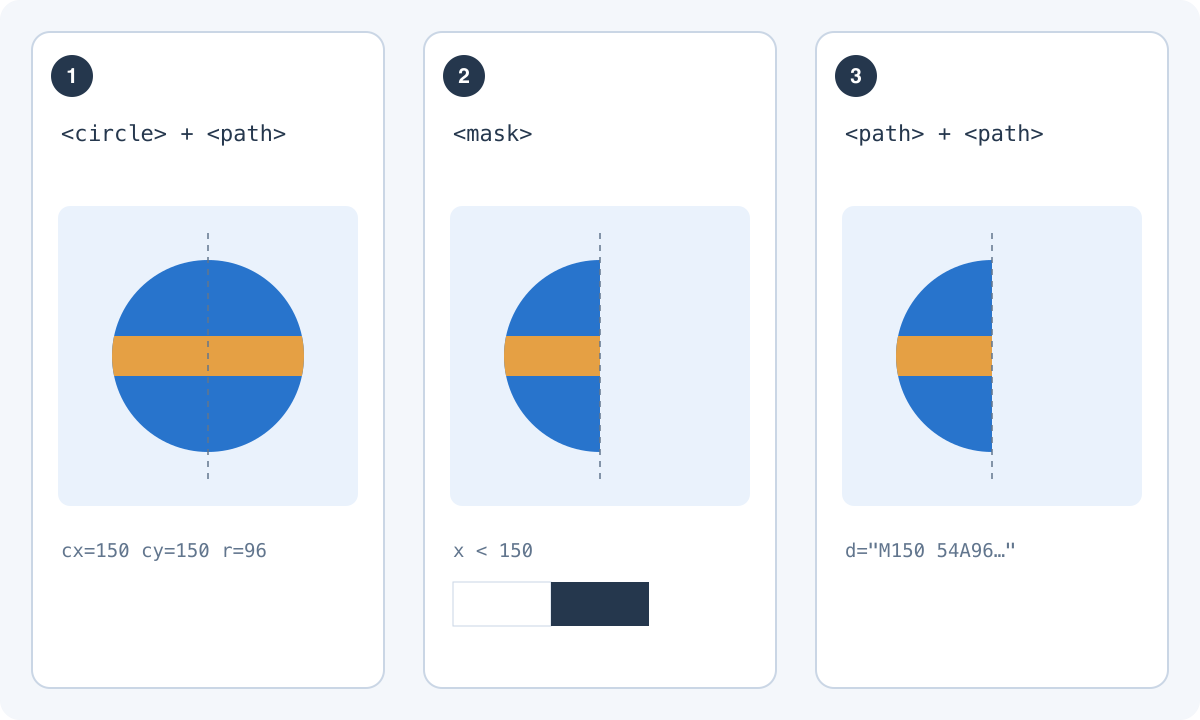
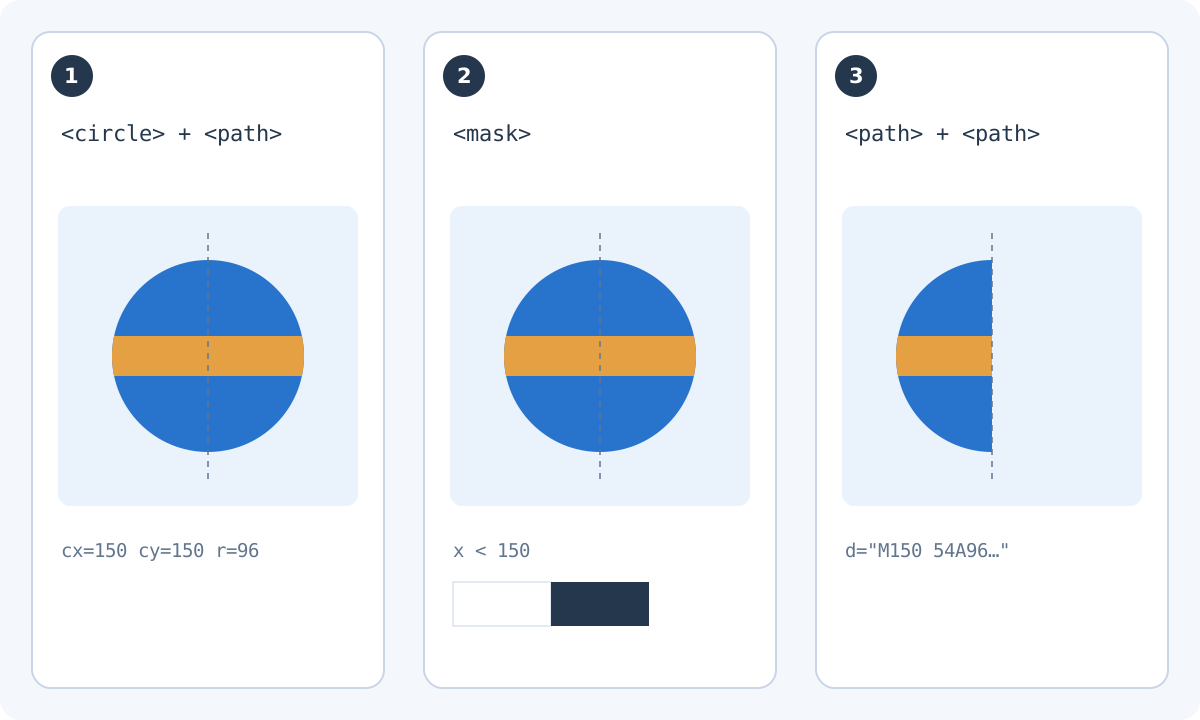
Here the mask has a hard boundary: white reveals the left part and black hides the right part. Rebuilding those visible halves as paths removes that particular dependency on masking. This is not a recipe for flattening every mask: soft transparency, texture and gradients may need a different design decision. Keep the original, repair a copy in the source editor and compare the boundary before importing again.
| Symptom | First check |
|---|---|
| Letters disappear | Live text versus path outlines |
| Photo disappears | Embedded raster image |
| Hole becomes filled | Compound path and fill rule |
| Shape vanishes only while moving | Bounds, opacity and stacking |
Repair holes as geometry
Transparent holes inside letters or symbols should be represented by suitable path structure. Covering an unwanted fill with a white shape only disguises the problem on white backgrounds. On a dark chat, that patch becomes visible.
Use a letter O or ring as a focused test. Give the surrounding shape a strong color and inspect it against two backgrounds. If the center is filled, review the compound path and winding or fill-rule behavior in the source editor. Rebuild the shape cleanly rather than layering background-colored patches.
Keep a small reproducible failing example
If the cause remains unclear, duplicate the file and remove unrelated objects until the problem still occurs in a small example. Keep the original file intact. A reduced SVG makes it easier to compare structures and explain the failure without a large illustration obscuring it.
Selecting any SVG in this service sends a diagnostic copy to the service, including before Telegram login. Sign in to use the converter, where conversion is computed in the browser. Once the affected element works, put it back into the complete design and repeat the full animation preview. A repair in isolation still needs to survive the final composition.