
To preserve lettering during SVG to TGS conversion, turn the final text into vector paths in your design editor. A text element refers to characters and font information; outlined lettering describes the shapes themselves. This changes how you edit the artwork, so keep an editable text master.
Understand what outlining changes
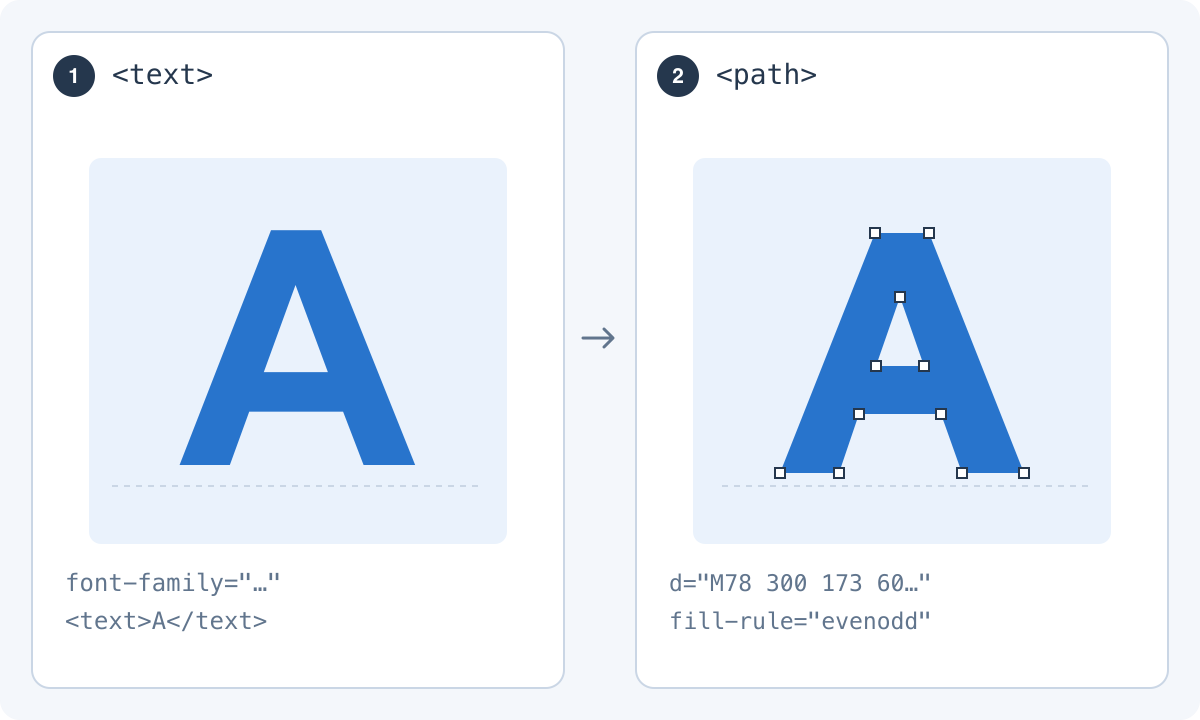
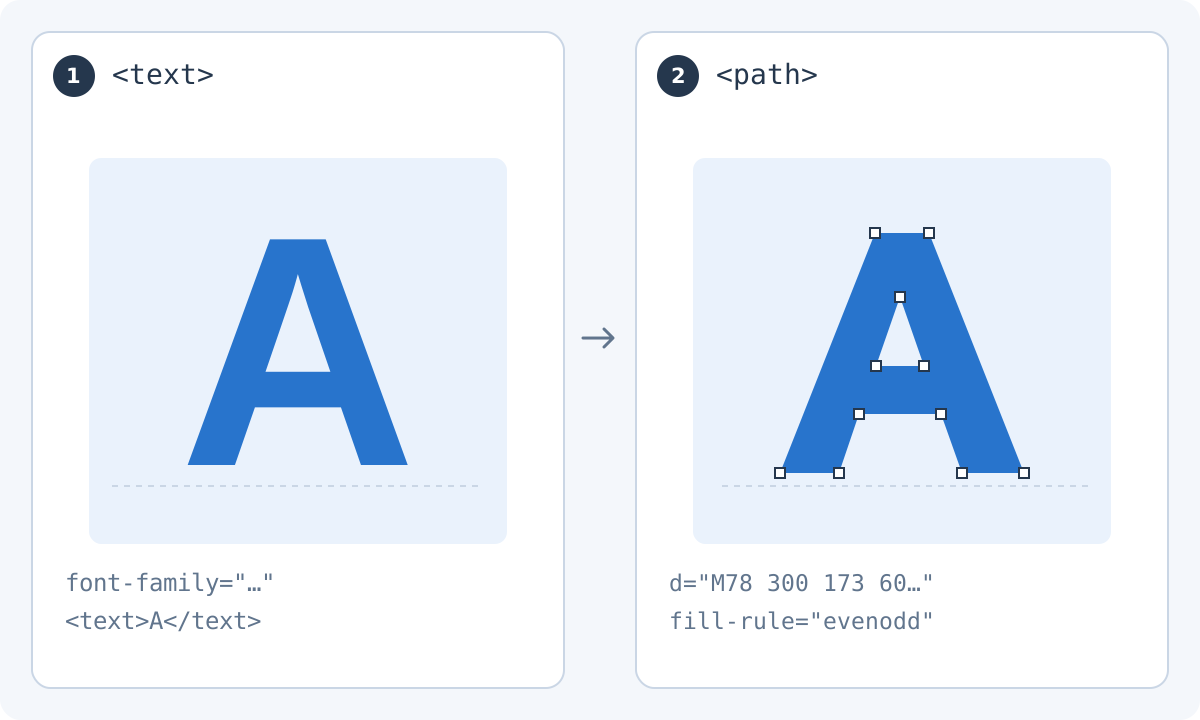
When a word becomes paths, the exported artwork no longer needs a text renderer to construct its letter shapes. This is useful for a TGS workflow built around vector geometry. It does not mean the text becomes searchable or editable as ordinary wording inside the sticker.
Consider a badge reading “HELLO.” The master should retain the text object so you can change it to “WELCOME.” The conversion copy can contain letter outlines. Updating the wording means going back to the master and outlining the new version, not stretching the old letter shapes until they resemble another word.
In the diagram, the nodes in panel 2 explain what an outline consists of; they are not instructions for manually tracing the letter. Use your editor's outline operation on the correctly rendered text. If the converter reports live text, prepare a revised SVG rather than expecting an animation preset or the download action to turn characters into paths.
Use the outline operation on a copy
In Figma, review the Outline text SVG export option or its text-to-vector tools. Illustrator offers outlined fonts in SVG export options. In Inkscape, Path > Object to Path converts selected text into geometry. Menu labels and available controls can vary by application version, so inspect the result rather than relying only on the operation name.
After conversion, select the word with the vector editing tool. Check whether you can see its contours and whether the object still behaves like editable text. You do not need to manually redraw every letter when your editor already provides a suitable outline operation.
Check the holes inside letters
Letters such as O, B, P and R contain enclosed spaces. These counters should remain transparent where the design requires them. Compound-path structure and fill rules determine how nested contours are painted, so a letter can appear solid if that structure changes.
Use an example like “BOP” to inspect several different counters in one export. Put the lettering over a contrasting temporary background while checking it, then remove that background before the final export. If a hole closes, repair the letter geometry or compound path rather than covering it with a shape that merely matches one chat background.
Simplify for the actual display size
Outlining preserves the designed letterforms, but it does not make tiny text readable. Shorten the wording, increase spacing or choose a symbol when a complete sentence becomes a blur. Review strokes and narrow gaps at the intended sticker or emoji size, not only at high zoom.
A two-letter mark may work as a custom emoji while a full slogan works only as a larger sticker. Treat these as separate compositions rather than shrinking one export for every use.
- Check the smallest enclosed gap.
- Compare neighboring letters after scaling.
- Remove decorative details that obscure the word.
- Keep the silhouette recognizable without reading every letter.
Compare the SVG and the converted result
Export a new SVG and open it outside the design editor. If the lettering is already wrong, correct the source or export settings. If it disappears only in the converter, confirm that the file contains paths rather than live text or an embedded image of the word.
After adding motion, check the most compressed or rotated position as well as the resting pose. An outline that is readable when still can overlap another letter during a large bounce. Keep the accepted SVG alongside the master so future wording changes can repeat the same verified preparation process.
To test the revised file here, sign in with Telegram and select the SVG. Selecting it sends a diagnostic copy to the service, including before login; the conversion itself is computed in the browser. Keep the original text master separate from this export copy.